User guide
How to use Parchi, one job at a time. Every name in bold is the name you will see on the screen.
Contents
Start hereAdd a paperFind, open and share papersMedicines and remindersBlood pressure, sugar and weightPulse check with the cameraLab results over timeInsurance policies and claimsFamily and the health cardSettings, backup and languageIf something goes wrong01Start here
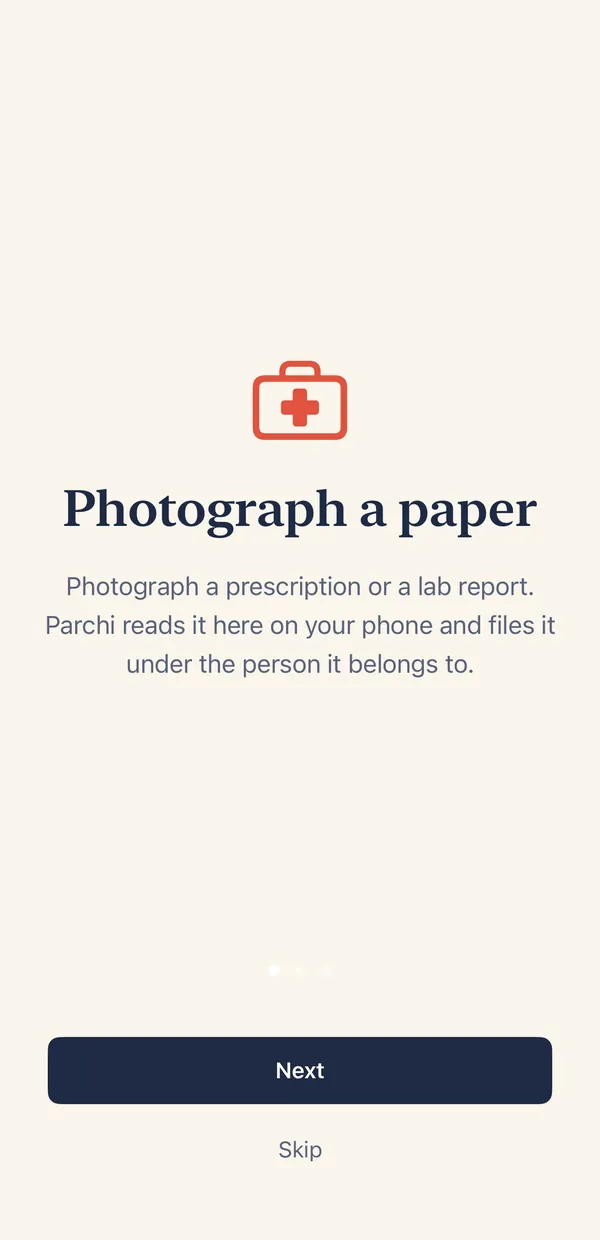
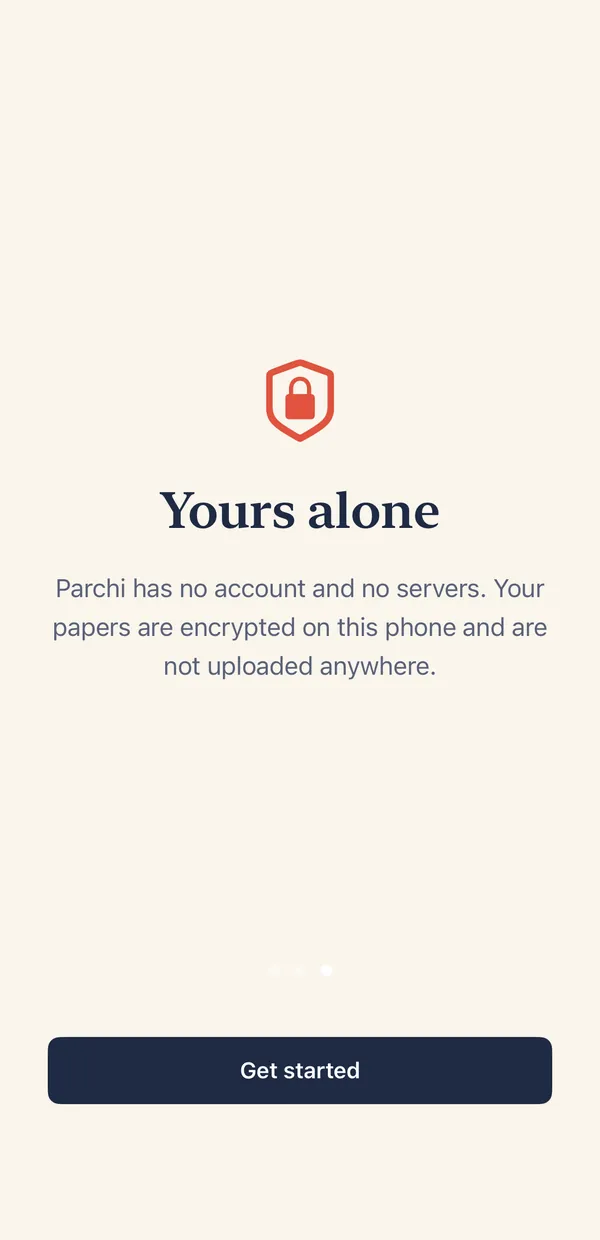
Parchi opens with three short screens. Tap Next, then Get started. There is no account to make and nothing to sign in to.
- Tap Get started on the last welcome screen.
- Open the Papers tab and tap + at the top right to add your first paper.
- Optional: open Settings and turn on Require Face ID or passcode, so your papers are locked whenever Parchi is closed.
- Free to try. Parchi keeps your first 3 papers free. You can always read what you have kept. Medicine reminders, ticking off doses and the health card are never locked.
- Five tabs. Papers, Health, Insurance, Family and Settings. Each does one job.
02Add a paper
Photograph a prescription, a lab report or a bill. Parchi reads the printed text on your phone and fills in what it finds. You check it before anything is saved.
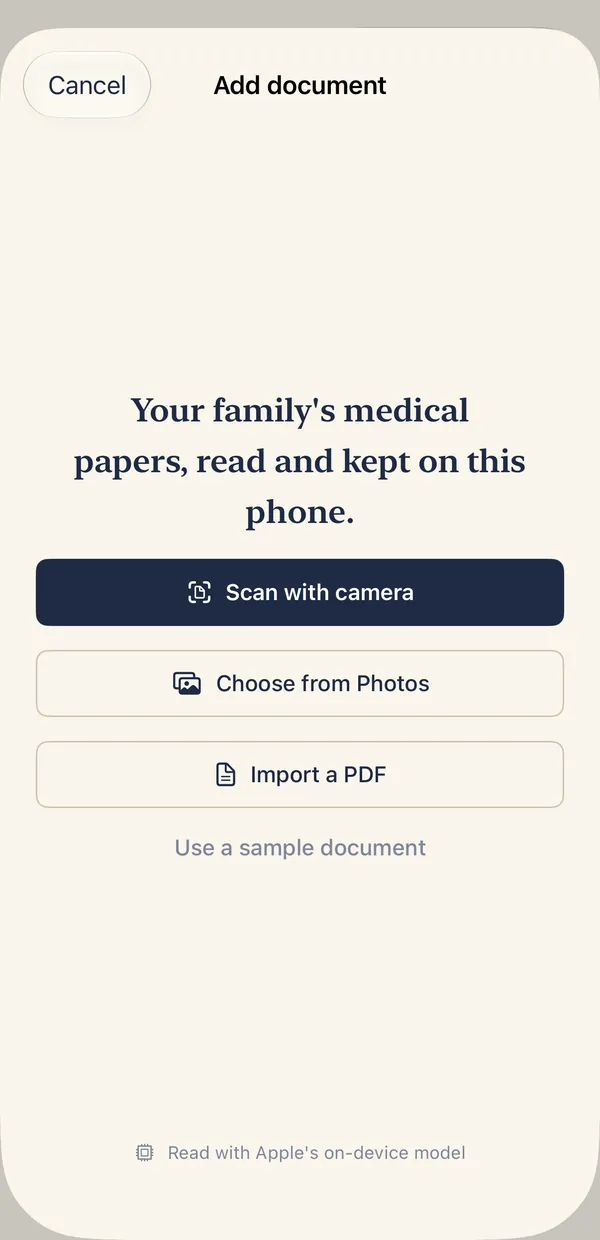
- On the Papers tab, tap + at the top right.
- Choose Scan with camera, Choose from Photos or Import a PDF. Use a sample document shows how it works without a real paper.
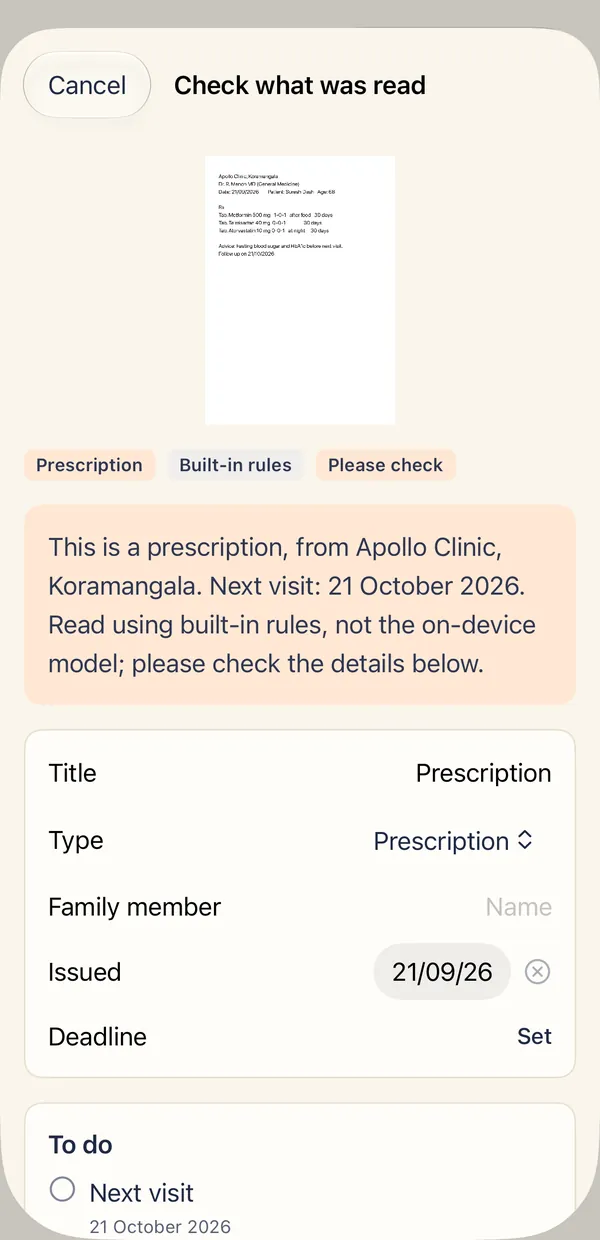
- On Check what was read, look at the title, type, family member, dates and the To do list. Tap any field to correct it.
- Choose whose paper it is, or type a new name. Names are never changed for you.
- Tap Save. The original photo stays beside what was read, so you can always check it.
- For a better read: lay the page flat, use even light, keep shadows and fingers out, and fit the whole page in the picture.
- Printed papers read best. Handwriting is read poorly. Parchi still keeps it safely and shows it next to what was read.
- Lab report as a PDF: use Import a PDF inside Parchi, or choose Parchi from the share sheet in Files, Mail or WhatsApp. If the PDF has a password, Parchi asks for the one the lab gave you.
- Newer iPhones use Apple's on-device model for extra help, and older ones use Parchi's built-in rules. The screen tells you which one read the paper. Nothing is sent anywhere either way.
03Find, open and share papers
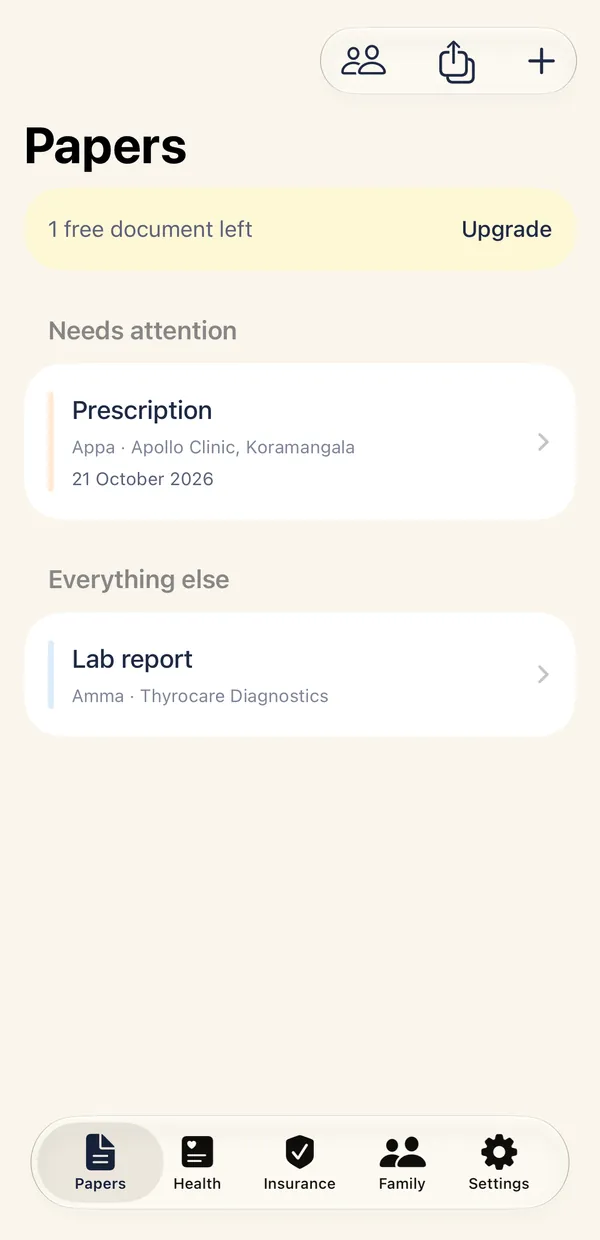
The Papers tab puts what needs attention first, then everything else.
- Papers with a date coming up appear under Needs attention, so a visit or a payment is not forgotten.
- Use Search papers to find a medicine, a clinic or a name across everything you kept.
- Tap the people icon at the top to show one person's papers, or Everyone.
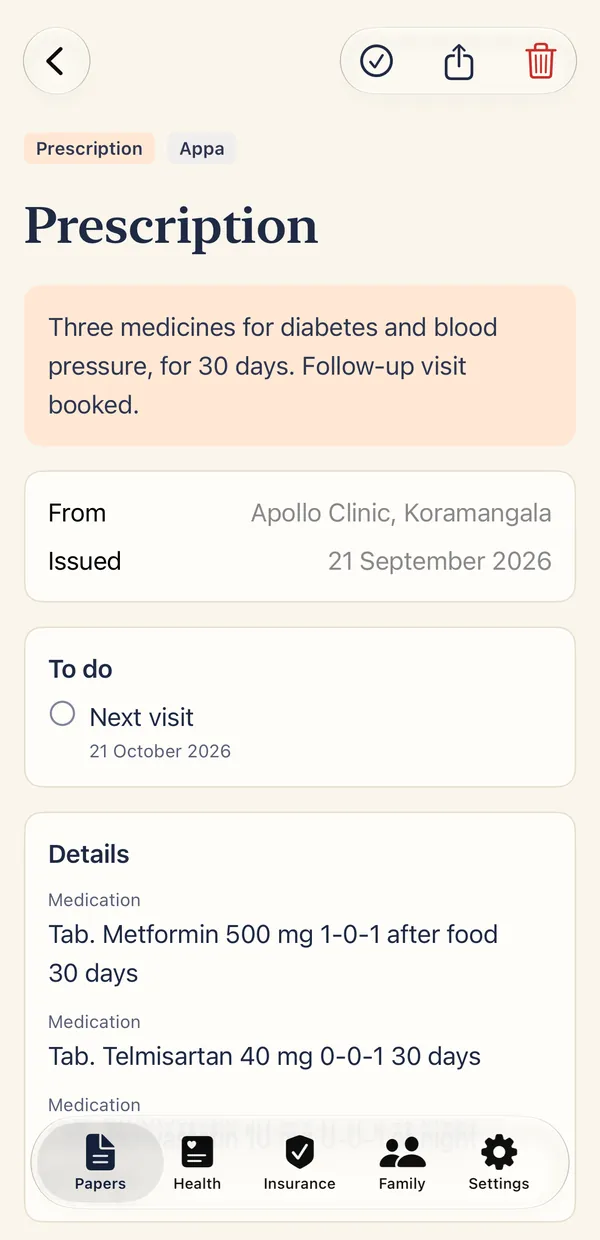
- Tap a paper to see its summary, who it is from, when it was issued, its To do items and the details read from it.
- To share several papers, tap the share icon on the Papers tab, choose Share records, tick the papers, decide whether to Include the original scans and tap Create PDF. The PDF starts with a list of what is inside, newest first.
- Once a PDF is shared, it is outside Parchi. Messaging and email apps keep their own copies.
04Medicines and reminders
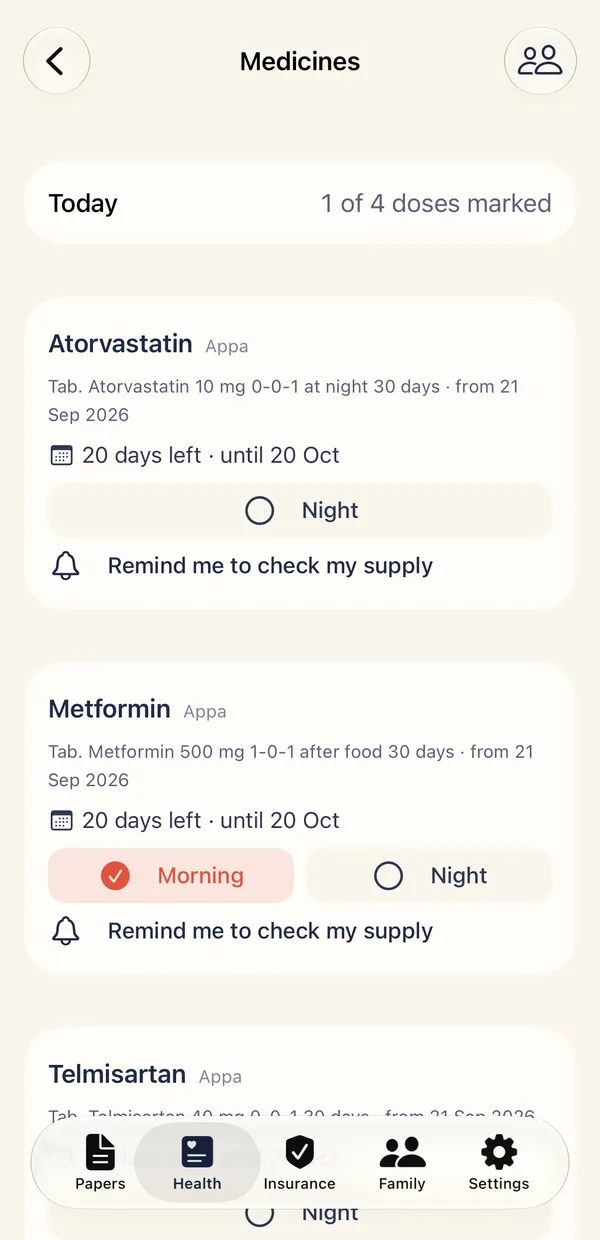
Scan a prescription and its medicines appear on the Health tab, with the days left in each course.
- Open Health, then Medicines. Each medicine shows its schedule and how many days are left.
- Tick Morning, Night or the other times as each dose is taken. The top shows how many doses are marked today.
- Tap Remind me to check my supply to be reminded 5 days before a course runs out.
- To be reminded at dose times, open the prescription and choose Set reminders. Adjust the times to suit the person, then save.
- If the scan missed a medicine, use Add a medicine the scan missed. You can also scan a medicine strip, a box or a pharmacy bill.
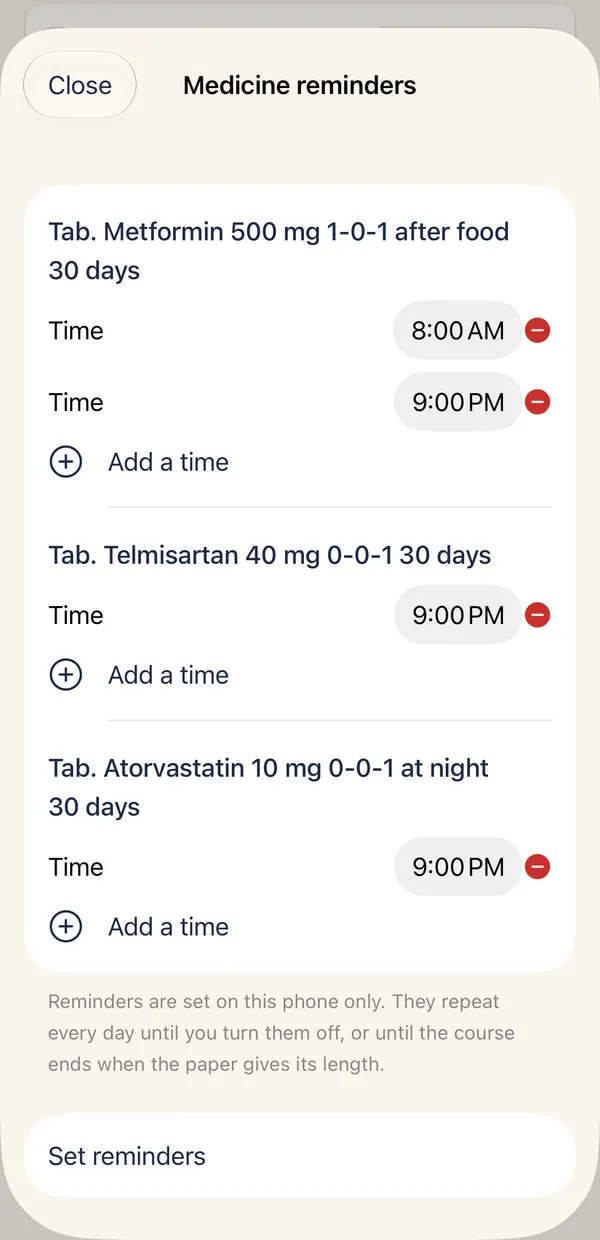
- Reminders are set on this phone only. They repeat every day until you turn them off, or until the course ends when the paper gives its length.
- If Parchi says notifications are switched off, turn them on for Parchi in your iPhone's Settings and try again.
- Parchi shows what the paper says. It does not tell you what to take or when to stop. Follow your doctor.
05Blood pressure, sugar and weight
Write down home readings for each person and see them as a simple chart.
- On the Health tab, tap + at the top right, or open All readings and charts and tap +.
- Choose Photograph the device display to read a blood pressure monitor, glucose meter, weighing scale or pulse oximeter. Or choose a photo, or type the numbers in.
- Check the numbers against the display, choose whose reading it is and tap Save.
- Open a reading type to see the chart over 30 days, 90 days or All, with the average, lowest and highest.
- To give the readings to a doctor, tap the share icon and send them as a PDF.
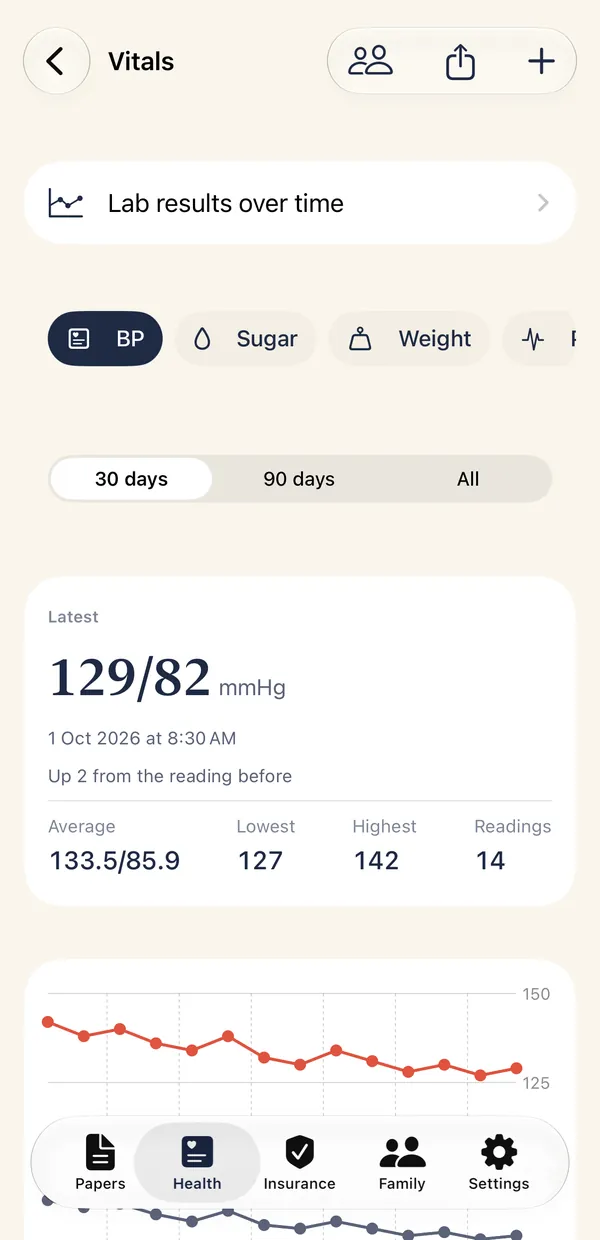
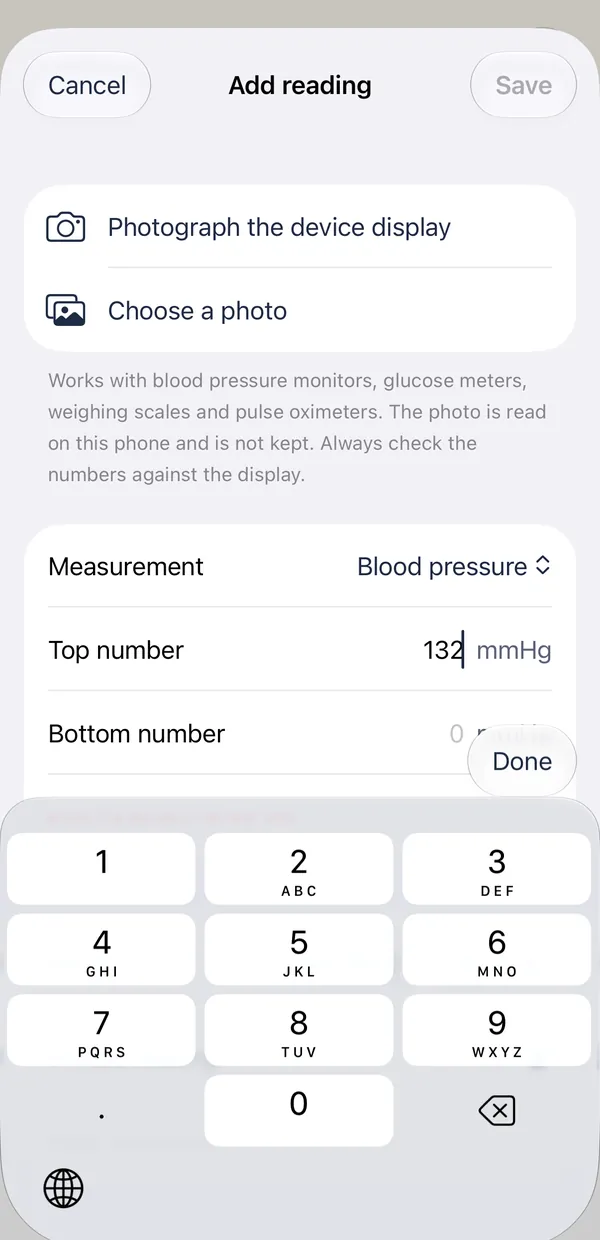
- Parchi shows your numbers and averages. It never says whether a reading is good or bad. Ask your doctor what is right for you.
- Parchi does not measure blood pressure, sugar, temperature or oxygen with the phone's camera. It only reads the screen of a device you already own.
06Pulse check with the camera
Cover the back camera and flash with a fingertip and Parchi estimates your pulse in beats per minute. It is an estimate only.
- On the Health tab, open Pulse estimate and tap Start. Allow the camera when asked.
- Cover the back camera and the flash lightly with a fingertip. Do not press hard.
- Rest your hand on a table, breathe normally and stay still for about 30 seconds.
- Watch the monitor. The green line follows your pulse, a pink dot marks each beat, and the big number settles after a few seconds. Each bar below is one beat, and the signal bars show how clear the picture is.
- When it finishes, choose whose reading it is and tap Save reading. It is saved as a camera estimate.
- This is an estimate. Fingertip and camera estimates can be off. It is not a medical device and not for diagnosis. Ask a doctor about your pulse.
- If it says Weak signal, try again, cover the camera and the flash fully, keep still and warm your hands first.
- The camera picture is used only for this estimate. It is not saved and never leaves your phone.
- A phone without a back camera and flash cannot do this check.
07Lab results over time
Scan each lab report and every test becomes a trend, with the range printed on your report shown behind it.
- Scan or import each lab report as a paper. Parchi reads the values that have a printed range.
- Open Health, then Lab results, and tap a test such as HbA1c or LDL.
- The chart shows each report's value, with the printed range as a band, and the reports it came from.
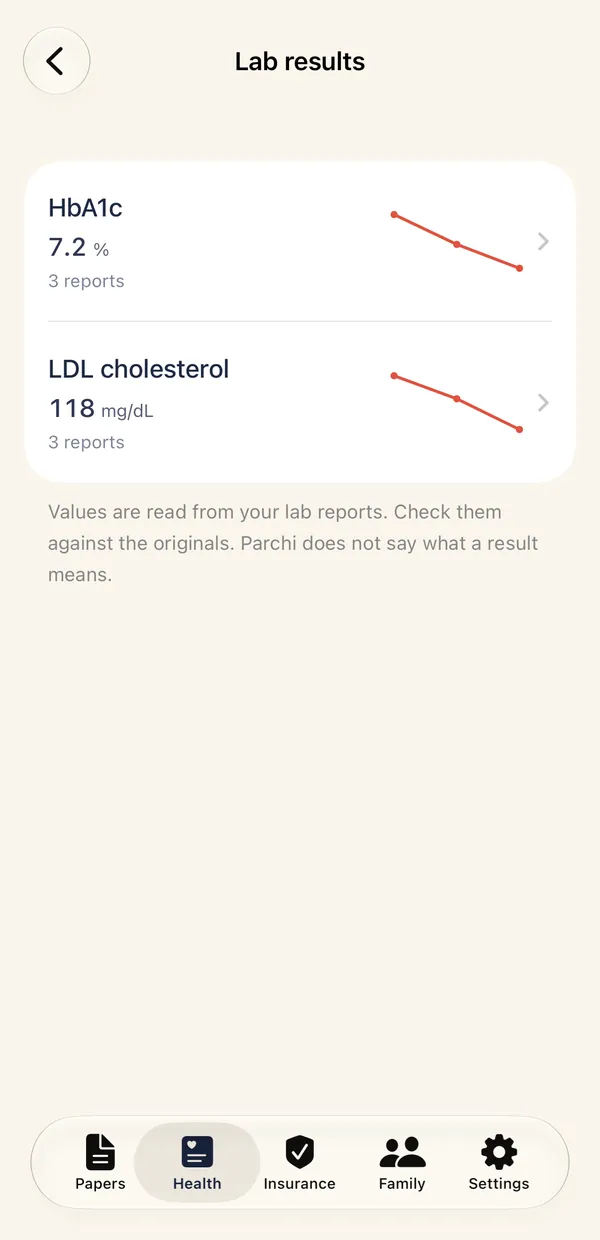
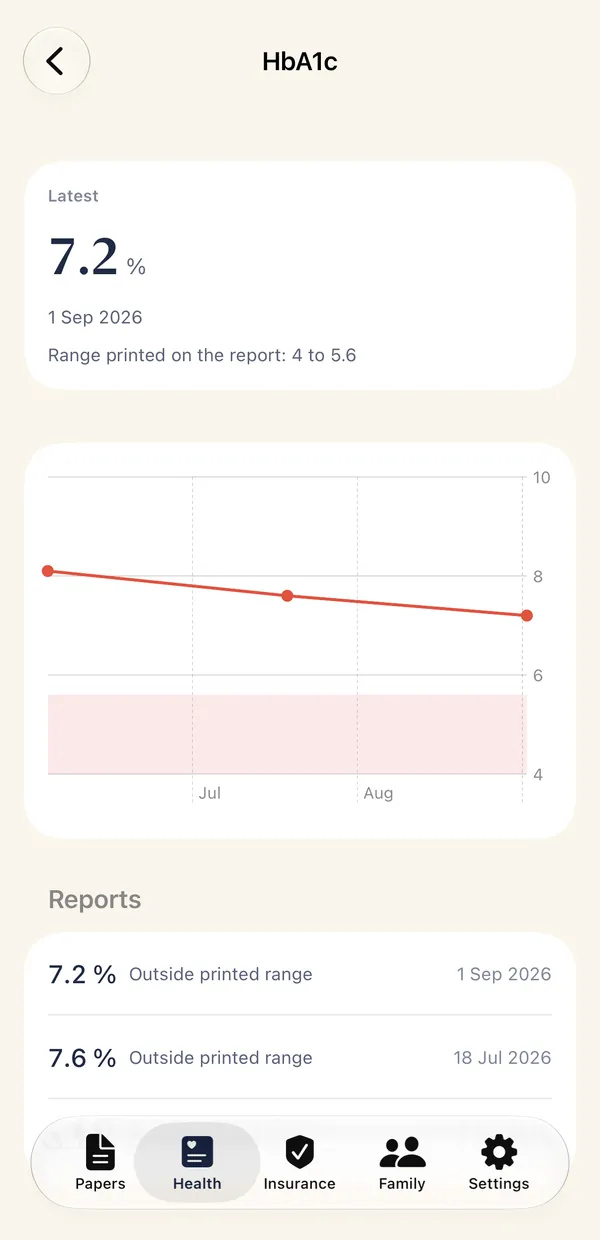
- Values are read from your lab reports. Check them against the originals. Parchi does not say what a result means.
08Insurance policies and claims
Keep every policy the family holds, sorted by type, with renewal reminders and the policy papers linked.
- Open the Insurance tab and tap + to add a policy.
- Choose the type of cover: health, life, travel, corporate, personal accident, critical illness or other.
- Fill in the insurer, plan, policy number, sum insured, premium and how often it is paid, and who it covers.
- Set the Renews on date and turn on the reminder, to be told a month and a week before.
- Add the helpline and, for life cover, the nominee. On the policy page, tap the helpline to call, or copy the policy number.
- Scan the policy document, the health card and the premium receipt, or choose them from papers you already kept, to link them to the policy.
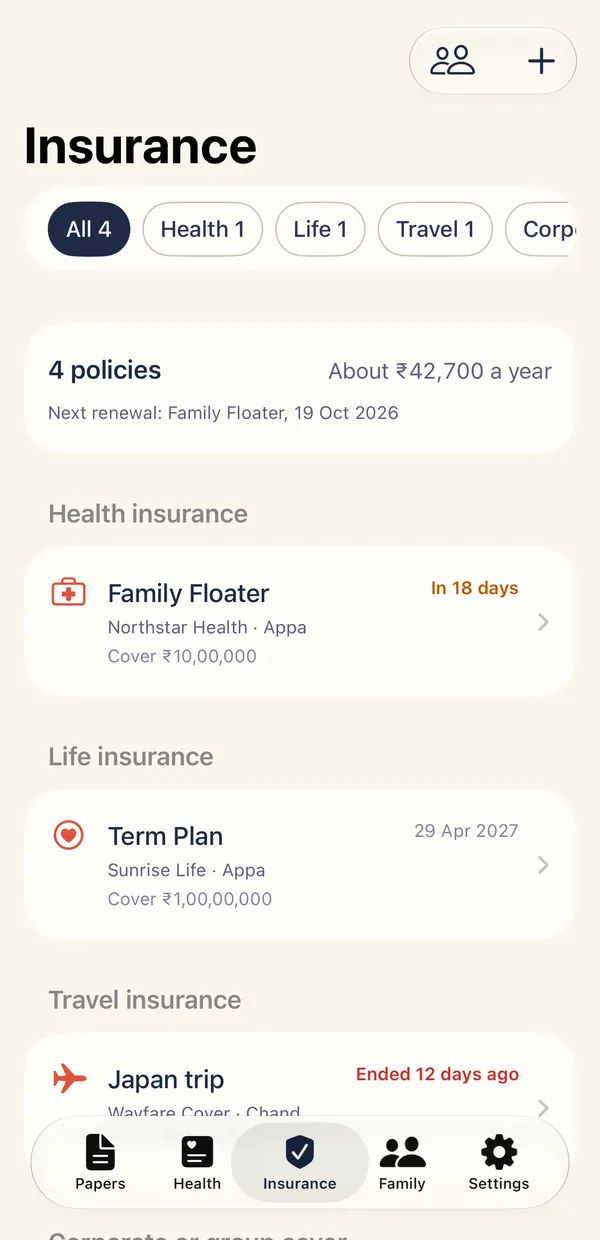
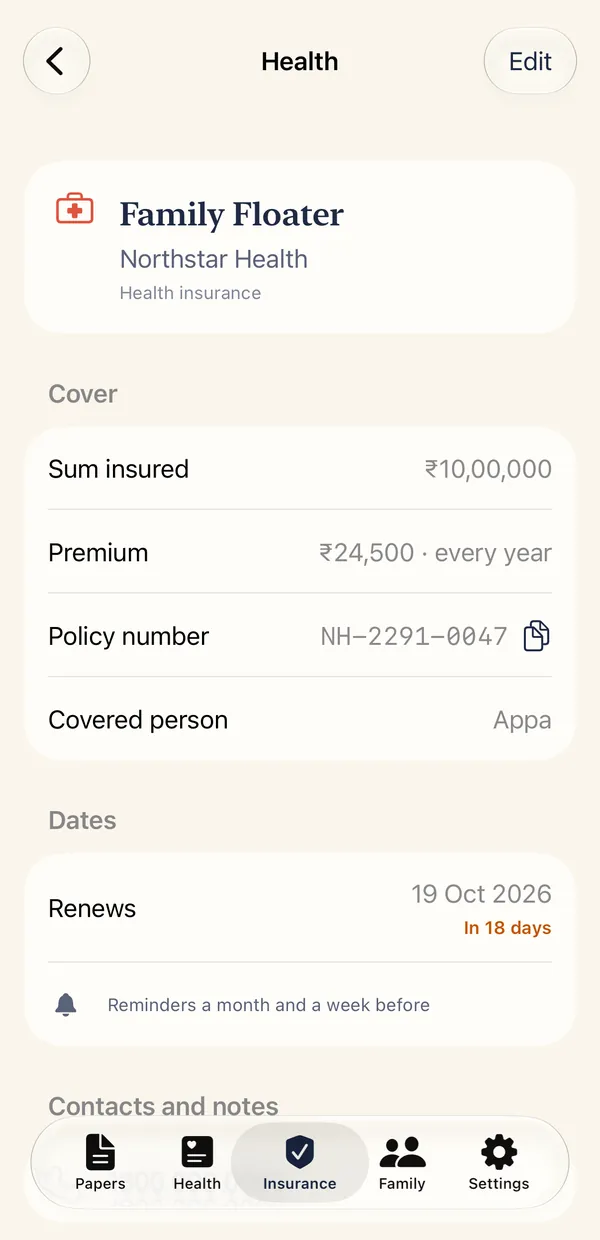
- The top of the tab shows what the family pays across all policies in a year and which renewal is next.
- Claim pack. For a hospital stay, choose the papers and Parchi makes one PDF with a checklist of what insurers usually ask for, what is missing and the date to send it by. Insurers differ, so check your insurer's own list. Set the number of days from your own policy.
- Deleting a policy removes its details from the phone. Papers linked to it stay in Papers.
09Family and the health card
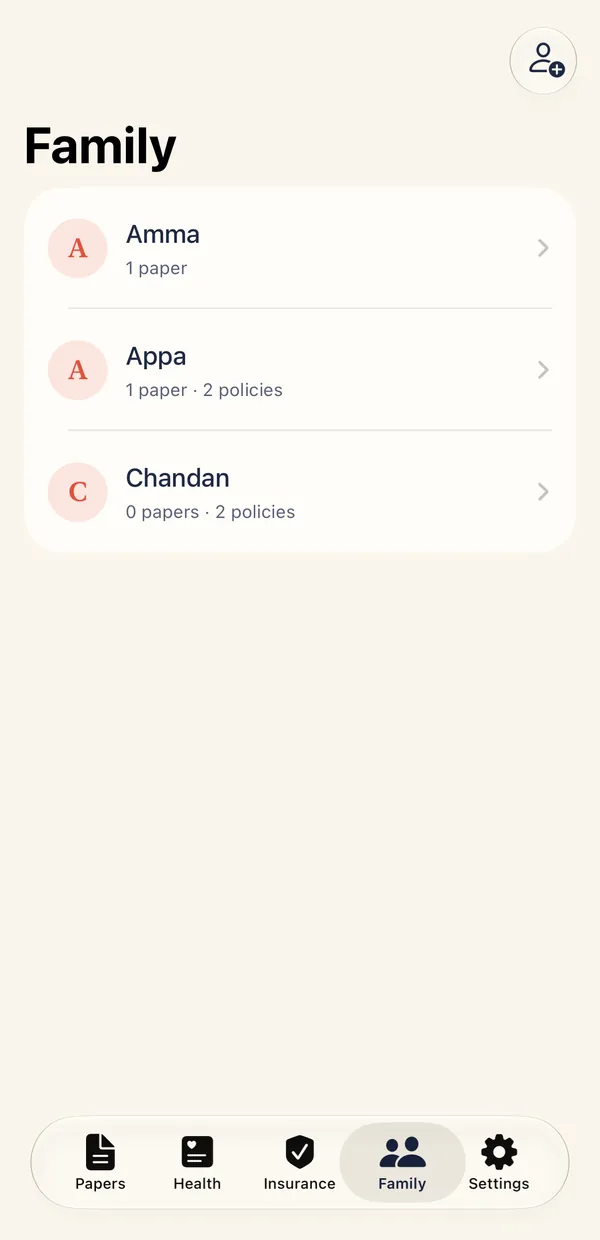
Each person gets one page with their papers, policies, medicines and readings.
- Open the Family tab. People appear as soon as you name them on a paper. To add someone yourself, tap the add person icon.
- Tap a person to see their papers, policies, the medicines they take now and their latest readings.
- Open Fill in the health card to add blood group, allergies, long-term conditions and who to call.
- The health card shows it all as one page you can show a doctor. Tap the share icon to send it, or tap the phone button to call the person to contact.
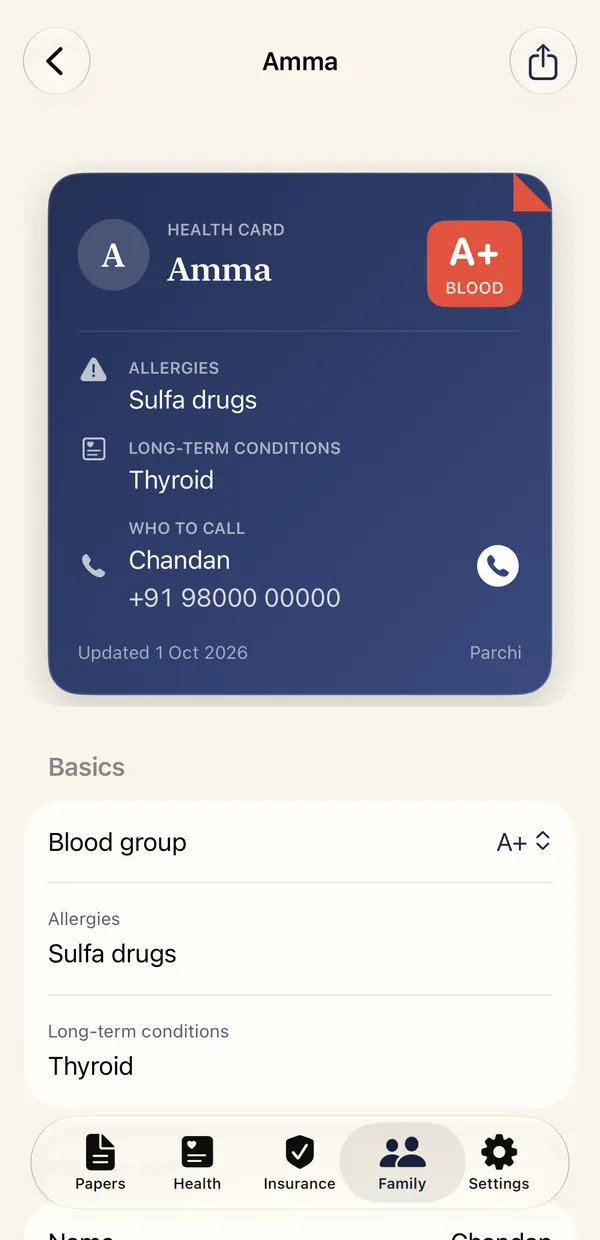
- The medicines on the card are taken from the prescriptions kept in Parchi. Check with the doctor before relying on the list.
10Settings, backup and language
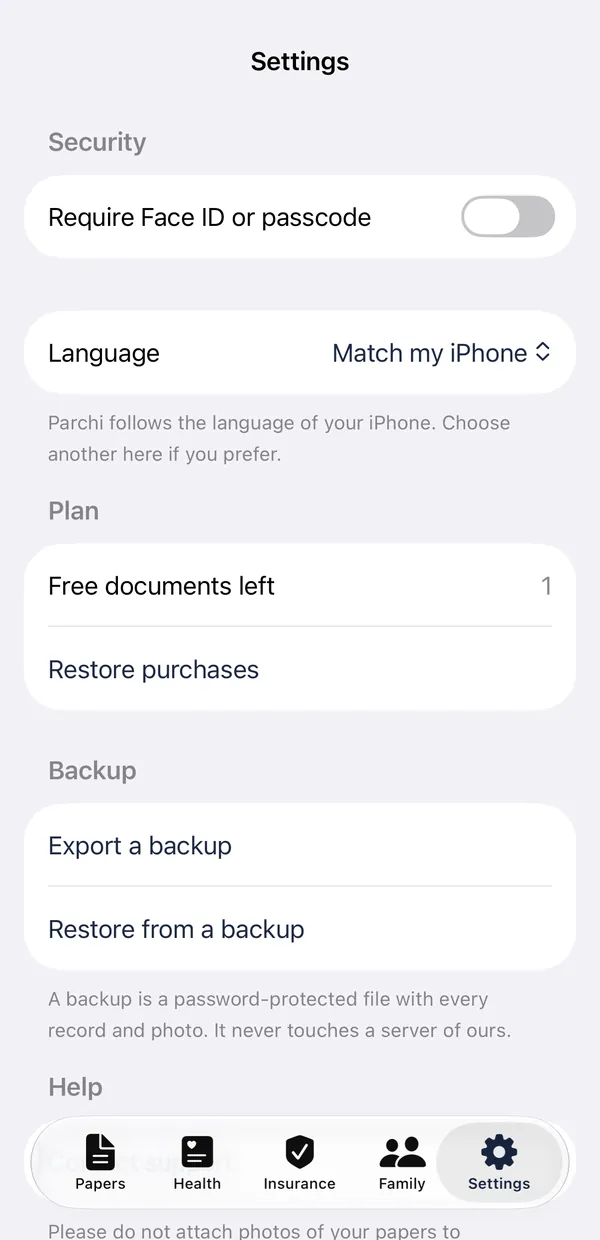
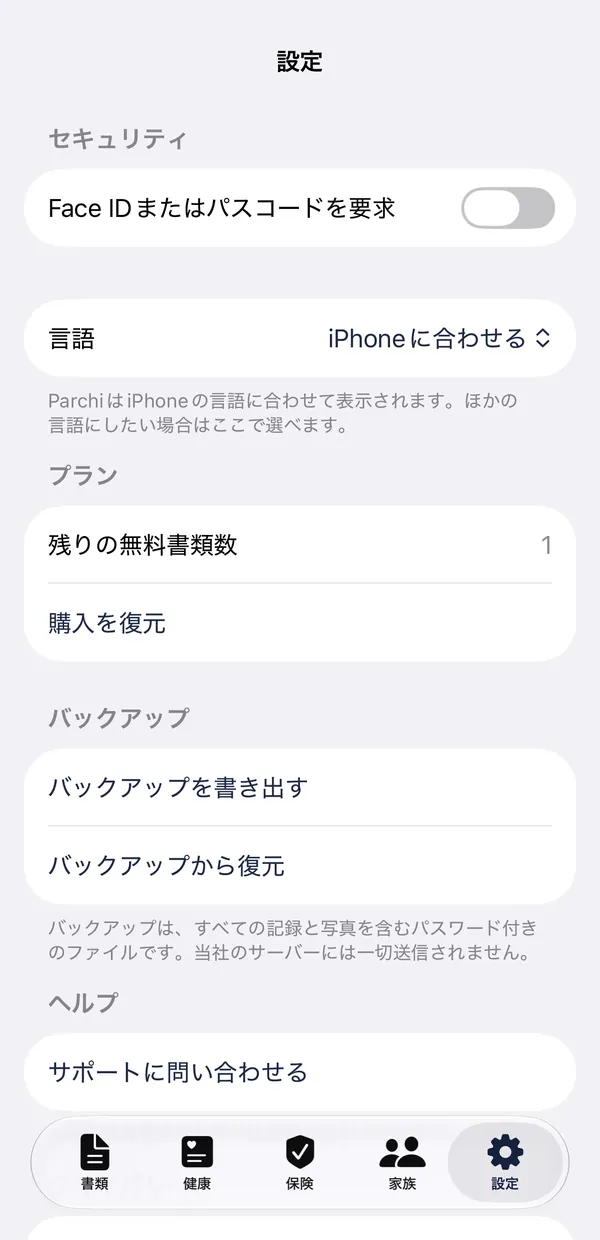
The Settings tab holds the lock, the language, your backup and purchases.
- Require Face ID or passcode locks Parchi. Your papers are also encrypted on the phone.
- Language follows your iPhone by default. Choose English or Japanese here instead. Close Parchi from the app switcher and open it again to see the change.
- Export a backup makes one file with every record, photo, policy and reading. Choose a password of at least 8 characters. Anyone who opens the file needs it, and Parchi cannot recover it for you.
- Restore from a backup brings everything back on a new phone. Records already on the phone are left alone.
- Restore purchases brings back your plan if you bought one on another device with the same Apple ID.
- Without a backup, papers on a lost phone cannot be recovered, because there is no server holding a copy. Apple's encrypted iPhone backup works too.
11If something goes wrong
Most problems have a short fix.
- No text was found. Try better light or a flatter page, with the whole page in the picture.
- The camera could not be started. Close other apps that use the camera and try again.
- A reading could not be found in a photo. Let the display fill the picture, or type the numbers in.
- A reminder did not come. Check that notifications are on for Parchi in your iPhone's Settings.
- Something was read wrongly. Tap the field on the review screen and correct it before saving.
- Still stuck? Write to support@getparchi.com with your iPhone model, the iOS version and what you were doing. Please do not attach photos of your papers. Describe the problem instead.
Parchi describes what a paper says and shows what you recorded. It does not diagnose, check interactions, suggest doses or say whether a reading is normal. Screens show sample data.